INF-250: Web Design and Development — Building with HTML
What HTML does
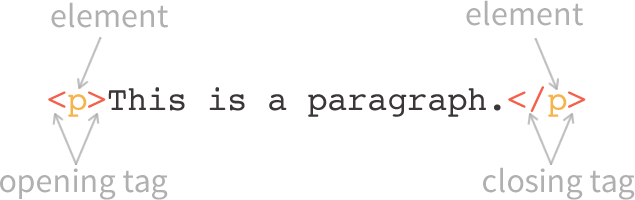
HTML (HyperText Markup Language) provides the structure of a web page. At the most basic level, HTML is a collection of elements. It tells the browser what each piece of content is by wrapping it in tags that turn that content into an HTML element.
Every HTML element is comprised of an opening tag and a closing tag . Some tags also include content in between the opening/closing tags, and attributes that provide additional information.
The opening tag always starts with a less-than sign (<), followed by the tag name, and then a greater-than sign (>).
The closing tag is similar, but includes a forward slash (/) before the tag name.
All tags must be closed!
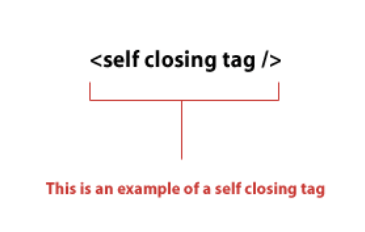
Some tags are self-closing, meaning they don't have any content or a separate closing tag.
<!--simple tags -->
<h1>This is a heading</h1>
<p>This is a paragraph of text.</p>

<!--tags with attributes-->
<a href="https://example.com">This is a link with a URL</a>
<h1 class="main-heading">This is a heading with a class</h1>

<!--nested tags-->
<p>This is a <strong>bold</strong> word inside a paragraph.</p>
<ul>
	<li>This is a list item</li>
	<li>This is another list item</li>
</ul>

<!--self-closing tag-->
<img src="/images/cat.jpg" alt="A cat" />
<br />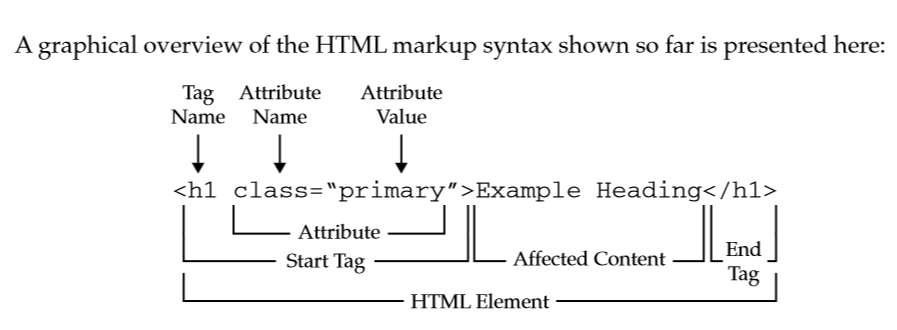
How a web browser "sees" HTML
When you load a page, the browser reads the HTML and builds a “tree” of elements (often called the DOM, or Document Object Model).
<!DOCTYPE html>
<html>
	<head>
		<title>My Page Title</title>
	</head>
	<body>
		<h1>Welcome!</h1>
		<p>This is my website.</p>
	</body>
</html>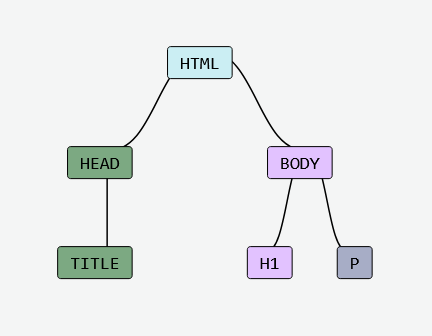
<!DOCTYPE html>
		<html>
			<head>
				<title>My First Page</title>
				<meta name="description" content="This is a simple HTML page." />
			</head>
			<body>
				<h1>Hello, world!</h1>
				<p>This is my first web page.</p>
				<div>
					<p>This is more complicated, since it has some nested tags.</p>
					<ol>
						<li>List item 1</li>
						<li>List item 2, with some <strong>bold text</strong></li>
					</ol>
				</div>
			</body>
		</html>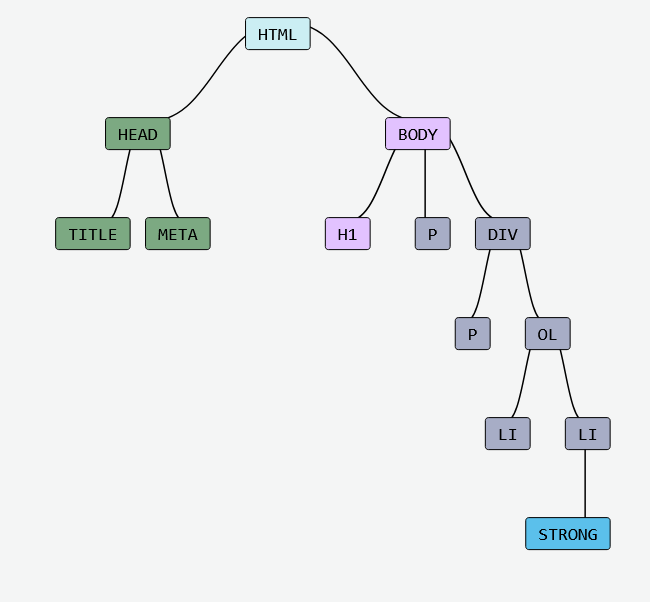
Give it a try: DOM Visualizer
Whitespace doesn't matter - but order and nesting do
HTML ignores extra spaces, tabs, and line breaks. The following two examples are equivalent:
<p>This is a paragraph with extra spaces.</p><p>
This is
a paragraph
with
e. e. cummings
line breaks
and
whitespace
that will be ignored.
</p>However, order and nesting are important:
<p>
  This is a <a href="#">link</a> inside a paragraph.
</p>

<a href="#">
  <p>This is a paragraph inside a link.</p>
</a>
The minimum basic tags for a page
Every HTML page should have these core pieces:
- <html>: wraps the entire document.
- <head>: information about the page (generally not visible in the page content, except for the <title> tag).
- <title>: the text shown in the browser tab and used by bookmarks.
- <body>: all the visible content the user sees.
In practice you’ll almost always also start with <!doctype html>. It tells the browser to use modern standards mode.
<!doctype html>
<html>
	<head>
		<title>My First Page</title>
	</head>
	<body>
		<h1>Hello, world!</h1>
		<p>This is my first web page.</p>
	</body>
</html>
Try building this in CodePen! Don't just copy and paste - type out each tag manually. See how CodePen automatically adds some nice indentation.
Experiment with:
- Adding a second (or third) paragraph.
- What happens if you omit the <head> or <title> tags?
- What happens if you remove the <h1> tag but keep the text?
VSCode Setup
CodePen is great for quick exercises and can be used for the bulk of this class. But it's good to also understand how a true code editor works and the advantages that come with it.
Once downloaded, create a new file. Make a basic website using the minimum tags we went over.
Save the file. The location doesn't matter, but to keep it simple you might want to save to our desktop. Name the file index.html. The file extension is important - make sure you end it with .html!
Now find the file on your desktop and open it. You should now be able to view your website in a browser (including the title tag!) When you make changes to your code, save it and refresh your browser to see the updates.
Play around by adding more tags and content to your page.
Design review
Balance, Alignment, Contrast, Repetition, Proximity
Journal Entry
Go to Blackboard and submit your Week 1B Journal entry.
Think about the kind of website YOU want to build this semester. Will it be a personal portfolio? A site for a business, club, or class project? Who is your audience, and what is the purpose of your site? Describe your project idea and goals. Don't worry, you can always change your mind later!