INF-250: Web Design and Development — HTML Tag Madness
Basic HTML structure
Go to CodePen and set up a basic HTML page using the five required tags. See if you can do it from memory. We'll be adding more code snippets as we go.
(Remember that CodePen does not require the <!DOCTYPE html> declaration.)
Quick Review
The <html> tag is the root element of an HTML page and wraps everything.
The <head> tag is always the first child of the <html> tag. It includes information about the page.
Inside the <head> tag, you must include the <title> tag to let the browser know the title of your page. This shows up in the browser tab.
After the <head> tag, you must include the <body> tag. This is where the content of your page goes.
Easy <p>-sy
The <p> tag defines a paragraph of text. Remember that any extra whitespace between words and characters will be stripped down to a single space.
<div> me a break
The <div> tag is a block-level element used to group elements for styling or scripting purposes. You will be using <div> tags. A lot.
<div> tags are often used to create sections of a webpage, but they don't add any semantic meaning. They're just generic containers.
Semantic meaning refers to the purpose that an element conveys to the browser (and search engines). As we saw above, the <p> tag is also a block-level container, but it has semantic meaning - it tells the browser that the content inside is a paragraph of text.
Jump into CodePen and create a <div> that contains something else - pick any of the other tags we've covered.
<heading> to the top
There are six levels of heading tags in HTML. They range from <h1> (the most important) to <h6> (the least important).
You will almost always start off the main text content area of a page with an <h1> heading. It denotes the primary topic of the page. Remember our "contrast" design principle? You'll want this to stand out the most among text elements.
There are some other finicky rules about the order of headings - you're not supposed to skip levels, like going from an <h1> to an <h3> without an <h2> in between.
Nothing bad will happen if you do this, and your site will look fine, but it's not considered best practice.
Jump back over to CodePen and create another <div>. Put some headings inside this <div> in the correct order.
Green eggs and <span>
The <span> tag is unassuming. It doesn't do anything on it's own. At this stage it might be hard to understand the point of it
Think of it like an inline <div> - it give you a generic way to style or manipulate a part of text within a line without breaking the flow.
Later, we'll use it to target elements with CSS and JavaScript
Take one of the headings you created in CodePen and wrap a <span> around a word or two within it.
Call to the bullpen: self-closers
Some HTML tags don't have any content or closing tags. These are called self-closing tags.
The <br /> tag inserts a line break You can add it anywhere, but it makes most sense to use it inside a <p> or <h1...h6> tag where you want to force the browser to start a new line.
The <hr /> tag inserts a horizontal rule (a line) across the page. Use it to visually separate sections of content, like this:
Back in Codepen, add some line breaks to one of your paragraphs or headings. Then add a horizontal rule between two sections of content.
Block vs Inline Elements
<span> tags are inline elements - they do not cause line breaks.
<div>, <p>, and <h1>...<h6> tags are block level elements - they do cause line breaks.
A good rule of thumb - block level elements can contain other block level elements or inline elements, but inline elements generally can only contain other inline elements.
Allowed:
<div>
	<h2>This is a heading</h2>
	<p>This is a paragraph with a <span>span inside it</span>.</p>
</div>
Not allowed:
<span>
	<h2>This is a heading</h2>
</span>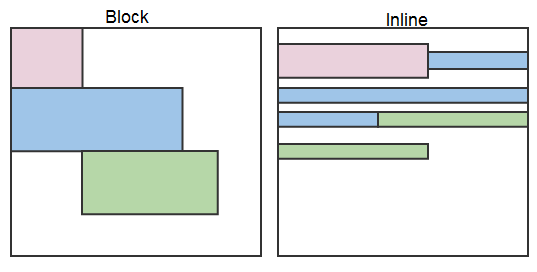
Design Review: Local School Edition
Journal
Head over to Blackboard and get working on your Journal entry. If you run out of time in class, just make sure it's submitted before the end of the day.