INF-250: Web Design and Development — More HTML, and CSS
Unordered lists: <ul>
Use <ul> (unordered list) when the order of the items doesn’t matter. Browsers usually display an unordered list with bullet points.
<h2>Shopping List</h2>

<ul>
	<li>Milk</li>
	<li>Bread</li>
	<li>Eggs</li>
</ul>
Shopping List
- Milk
- Bread
- Eggs
Ordered lists: <ol>
Use <ol> (ordered list) when the order matters (steps, rankings, instructions). Browsers usually display an ordered list with numbers.
<h2>Steps</h2>

<ol>
	<li>Open VS Code</li>
	<li>Create a new file</li>
	<li>Save it as index.html</li>
</ol>
Steps
- Open VS Code
- Create a new file
- Save it as index.html
List items: <li>
Each item in a list is an <li> (list item). A list item must live inside a <ul> or <ol>.
<ul> and <ol> are the container.<li> is the repeated element inside. Nesting lists
You can place a list inside an <li> to make a nested list. This is common for menus and outlines.
<h2>Course Topics</h2>

<ul>
	<li>
		HTML
		<ul>
			<li>Headings</li>
			<li>Links</li>
			<li>Lists</li>
		</ul>
	</li>
	<li>
		CSS
		<ul>
			<li>Selectors</li>
			<li>Colors</li>
			<li>Layout</li>
		</ul>
	</li>
</ul>
Course Topics
-
HTML
- Headings
- Links
- Lists
-
CSS
- Selectors
- Colors
- Layout
Semantic Elements
HTML has two big jobs:
- Structure content so humans can read it
- Describe meaning so browsers, screen readers, and search engines can understand it
That second part is where semantic HTML comes in. Semantic elements describe what the content is, not just how it looks.
Better accessibility (screen readers), clearer code, and better SEO.
The semantic elements you'll use are:
<header><footer><nav><section><article>
<div> tags that describe what's inside them. Anywhere you use one, you could use a <div> instead, but using semantic tags is better when the context matches. <header> and <footer>
Use <header> for introductory content for a page or a section (like a title, logo, or top navigation).
Use <footer> for ending content (copyright, contact info, secondary links).
<header> and <footer>. For example, an <article> can have its own header/footer. <header>
<h1>My Site</h1>
<p>Welcome to my homepage.</p>
</header><footer>
<p>Copyright 2026</p>
<a href="#">Privacy Policy</a>
</footer><nav>
Use <nav> when a group of links is meant for navigation. Examples: site menu, table of contents, pagination.
<nav>. <nav>
<a href="#">Home</a>
<a href="#">Courses</a>
<a href="#">Contact</a>
</nav><nav> you can use a <ul> to list the links. Don't forget to also wrap each link in a <li>! <nav>
<ul>
<li><a href="#">Home</a></li>
<li><a href="#">Courses</a></li>
<li><a href="#">Contact</a></li>
</ul>
</nav><section> vs <article>
Use <section> to group related content on a page. A section typically has a heading and contains multiple paragraphs or other elements.
Use <article> for a self-contained piece of content that could make sense on its own (blog post, news item, product card, forum post).
Very small examples:
<section>
	<h2>About Me</h2>
	<p>This section groups related content together.</p>
</section>
<article>
<h2>News: Class Canceled</h2>
<p>Posted on Feb 2, 2026</p>
<p>This is a self-contained piece of content.</p>
</article>CSS!
CSS (Cascading Style Sheets) is what we use to control how our HTML looks: color, fonts, spacing, layout, etc.
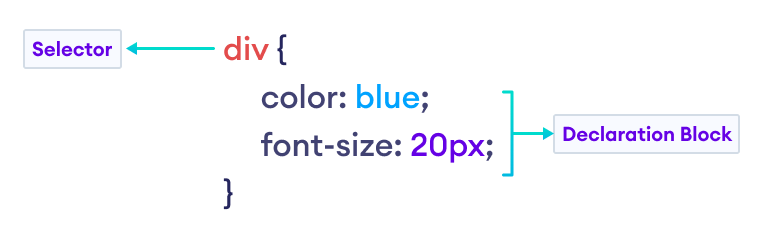
CSS is written as rules. A rule usually has:
- a selector (what to style)
- a property (what to change)
- a value (what to set it to)
- Separate multiple rules with a semicolon
;
CSS method 1: Inline styles
Inline CSS is written directly on an element using the style attribute.
<h2 style="color: purple;">Inline CSS</h2>
<p style="color: green;">This paragraph has an inline style.</p>
Inline CSS
This paragraph has an inline style.
CSS method 2: A <style> block in the <head>
You can put CSS in a <style> tag inside the <head> of your HTML file.
<!doctype html>
<html>
	<head>
		<title>CSS Example</title>
		<style>
			h1 {
				color: purple;
			}
		</style>
	</head>
	<body>
		<h1>This will render as purple.</h1>
	</body>
</html>
CSS method 3: An external stylesheet
This is the most common approach: put your CSS in a separate file (like styles.css) and link it in your HTML.
<!doctype html>
<html>
	<head>
		<title>CSS Example</title>
		<link rel="stylesheet" href="style.css" />
	</head>
	<body>
		<h1>Styled with an external stylesheet</h1>
	</body>
</html>
The CSS file:
/* style.css */
h1 {
	color: purple;
}rel attribute specifies the relationship between the current document and the linked document/resource.Full list of possible values: https://www.w3schools.com/tags/att_link_rel.asp
How to target elements
In CSS, the selector is the part that decides which HTML elements get styled.
Here are the most common ways to target elements:
- Element selector: target tags like
h1,p,ul - Class selector:
.classname(targets elements withclass="...") - ID selector:
#idname(targets the element withid="...") - Descendant selector:
.card p(anypinside.card, no matter how deep) - Grouping selector:
h2, h3(apply the same rules to multiple selectors)
Use IDs when something should be unique on the page.
Use classes when you want to style many elements the same way.
Selector example
Group Work
Get together with your group and examine the MSJ, UC, Xavier, and Cincinnati State websites. Use your inspector or code view to see if you can find examples of the following:
- A CSS rule that targets a descendent element (like
.card p) - A CSS rule that targets an element by ID.
- An example of a semantic HTML element.
- A
<link>element that links to an external stylesheet. - A
<link>element that points to something besides a stylesheet. - An example of an ordered or unordered list.
- A CSS rule that applies a background color to an element.
- Find out the name of the font family used for the body text and heading text. Do they use the same font or different fonts?
- How is the main navigation structured - does it use
<nav>? What about<ul>or<ol>?