INF-250: Web Design and Development — Position and Display
The Box Model
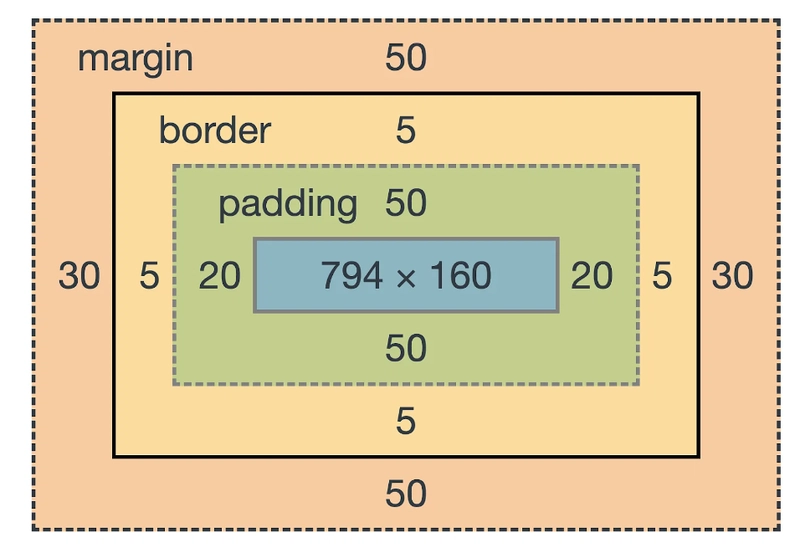
- Applies to any element set to
display: block, either via CSS or by default. - Content (blue): The area where text or other content is displayed.
- Padding (green): Space between the content and the element's border.
- Border (yellow): A frame that wraps around the padding and content.
- Margin (red): Space between the element's border and neighboring elements.
Easier way to think about it: the content is the house, the padding is the lawn, the border is the fence, and the margin is the space between houses.
Setting the padding value
This will set the padding on all sides of the element:
div {
	padding: 8px;
}
Setting the border value
The border property is a shorthand for setting the width, style, and color of an element's border. For example:
div {
	border: 2px solid black;
}
Alternatively, you can set each border property individually:
div {
	border-width: 2px;
	border-style: solid;
	border-color: black;
}
Setting the margin value
Applies to all sides equally:
div {
	margin: 32px;
}
Other margin/padding methods
To set different values for each side, you can use the following pattern:
div {
	padding-left: 16px;
	padding-top: 8px;
	padding-right: 16px;
	padding-bottom: 8px;
}
To set different values for top/bottom and left/right. This will give 8px of padding on the top and bottom and 16px on the left and right:
div {
	padding: 8px 16px;
}
Shorthand for giving all 4 values (values go clockwise: top, right, bottom, left)
div {
	padding: 8px 16px 24px 32px;
}
Match the images
Visit https://codepen.io/peter-adams-msj/pen/ogLRjQy and use only CSS for border, margin, and padding to get as close to each image as possible.
Image #1:
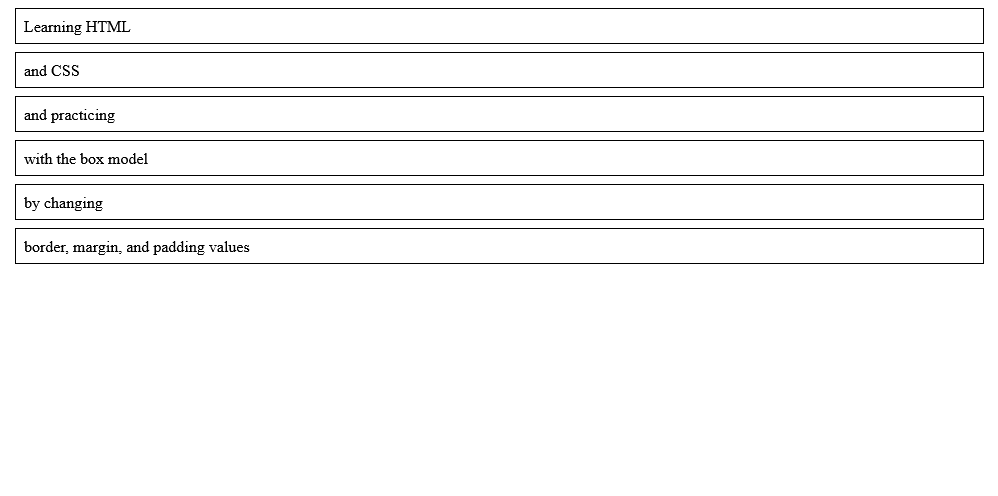
Image #2:
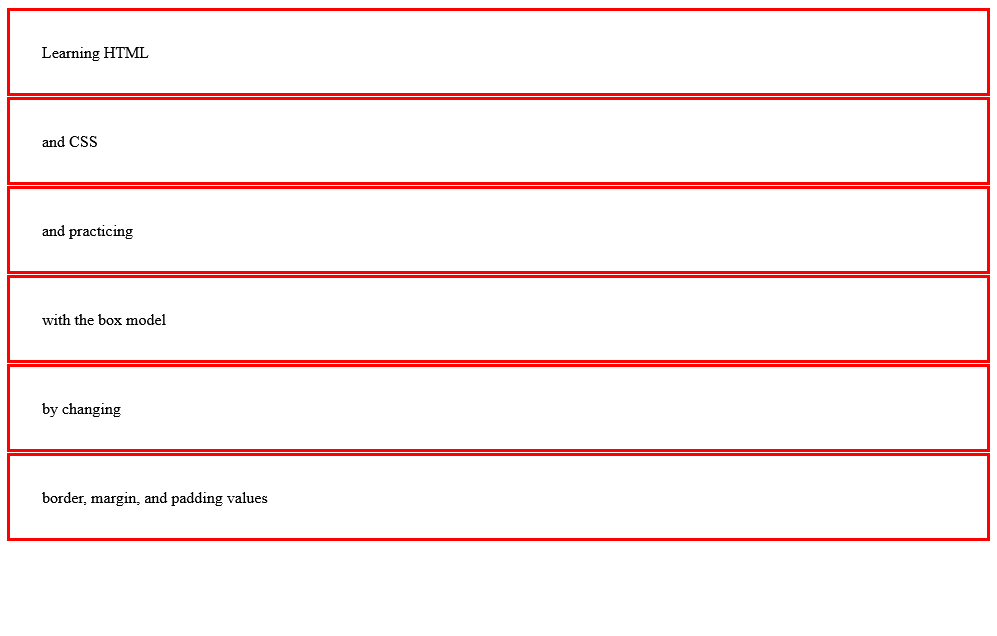
Image #3:
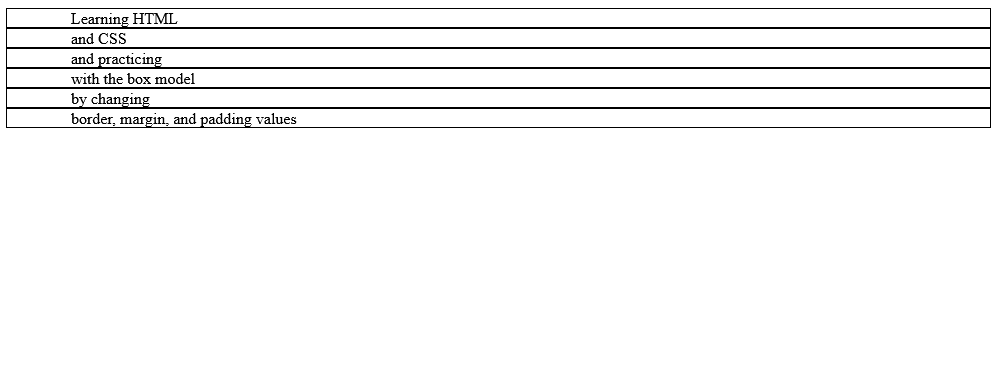
Image #4:
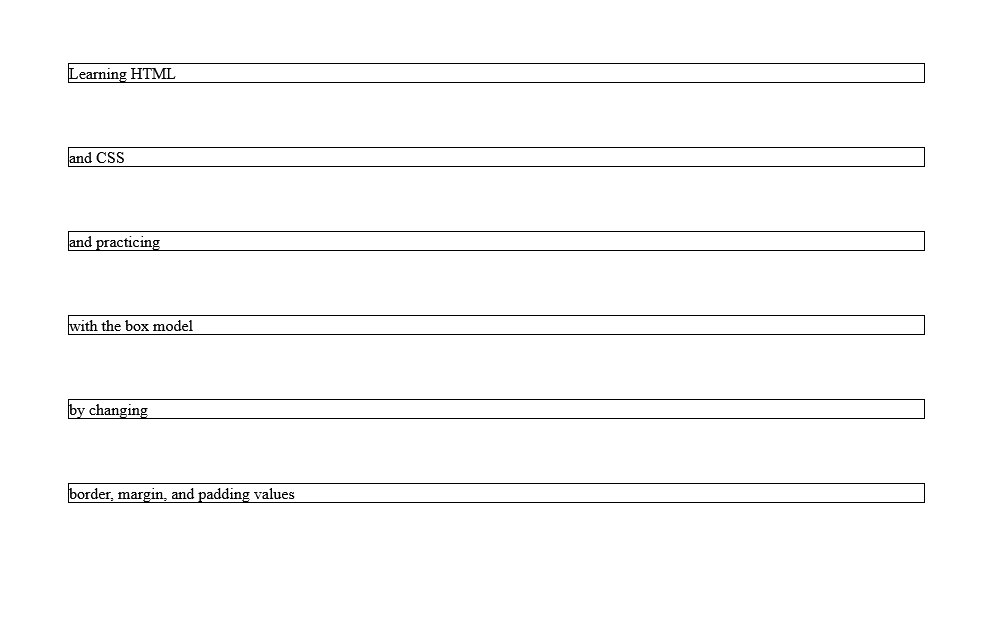
Image #5:
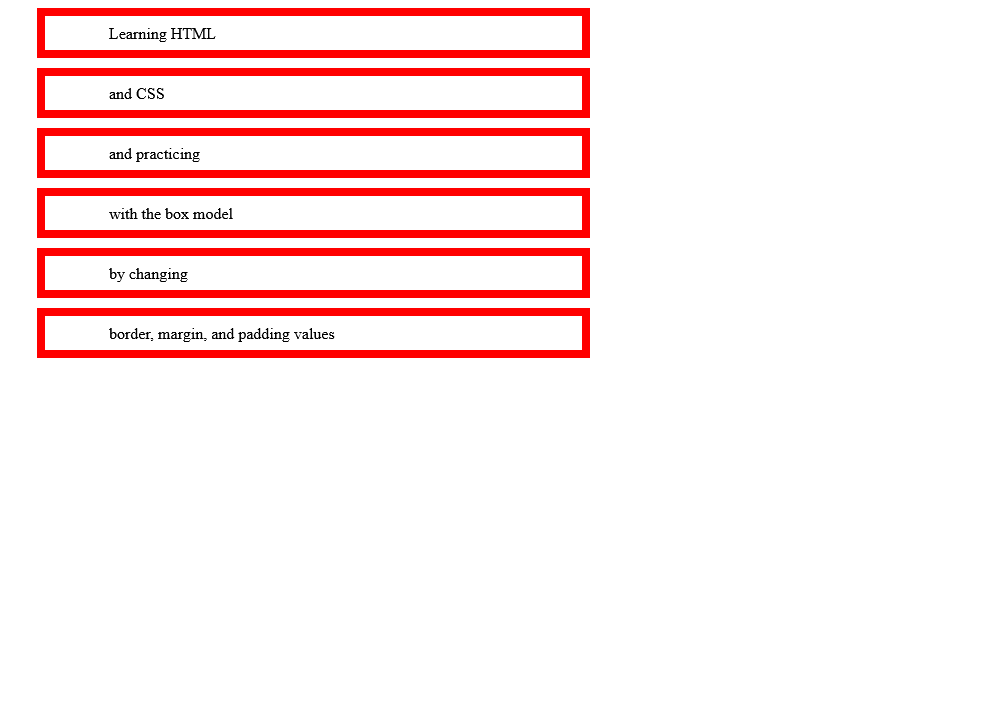
Image #6:
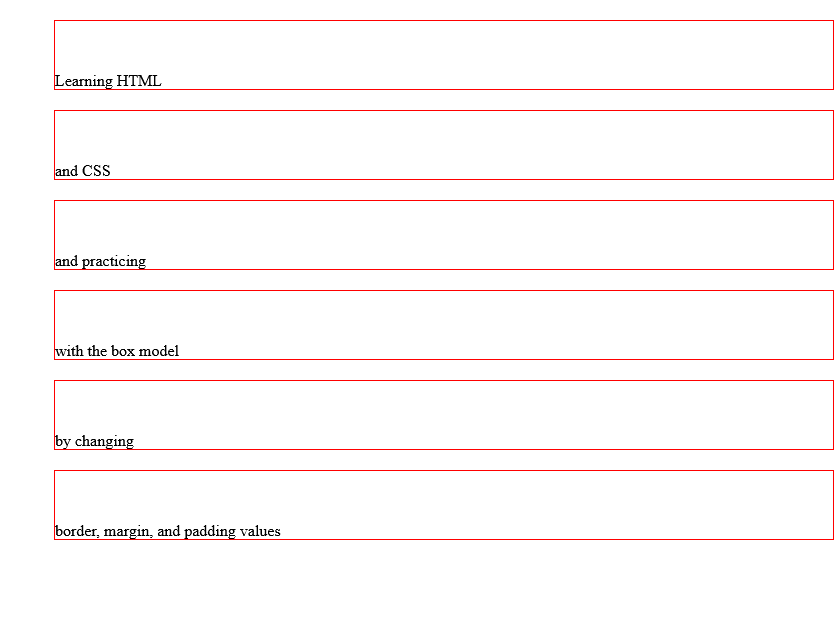
CSS position
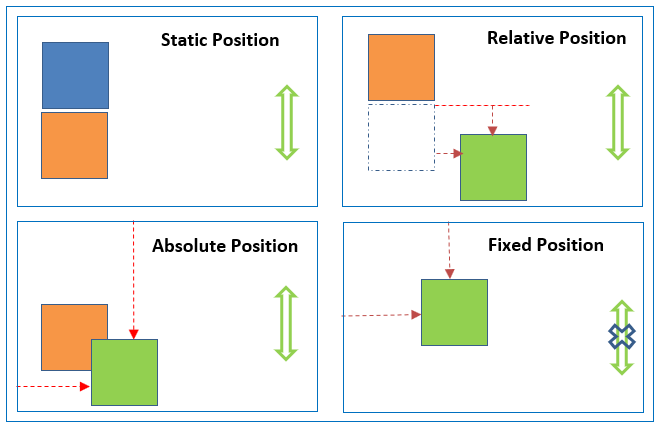
The position property controls how an element is laid out and how offsets like top, bottom, left, right are applied.
position: static
- Default for all elements.
- The element stays in the normal document flow.
- Offset properties like
topandleftwon’t move it.
Syntax:
/* Default positioning */
.box {
	position: static;
	/* top/right/bottom/left do nothing on static elements */
	top: 20px;
}
position: relative
- The element stays in the normal flow, but you can nudge it from its normal position.
- Common offset syntax uses
top/leftetc. Values can be positive or negative.
Syntax options:
/* Moves the element relative to where it would normally be */
.box {
	position: relative;
	top: 10px;
	left: 20px;
}
position: absolute
- Removed from the normal document flow (it won’t take up space).
- It’s positioned relative to the nearest ancestor that is not
static(often you set the parent toposition: relative). - Offsets can be set with
top/right/bottom/left.
Syntax options:
/* Absolutely positioned elements are taken out of normal flow */
.absolute {
	position: absolute;
	top: 0;
	right: 0;
}
position: fixed
- Positioned relative to the viewport.
- Stays in the same place when the page scrolls.
- Offset syntax works the same as absolute (
top/leftetc.).
Syntax options:
/* Fixed elements are positioned relative to the viewport */
.banner {
	position: fixed;
	top: 0;
	left: 0;
	width: 100%;
}
Important "gotchas"
- Absolute and fixed elements won't span the full width of the container like a typical block element. If you want them to grow, you need to set their width explicitly (like
width: 100%). - Absolute and fixed elements are removed from the normal flow, so any parent container will appear to have a size of 0 if nothing else is present.
- Absolute elements are positioned relative to their nearest positioned ancestor. If none exists, they are positioned relative to the viewport.
- Fixed elements are always positioned relative to the viewport, not any ancestor.
Group Activity
Partner up with someone to make a simple single-page "Guide to MSJ" page. Collaborate and discuss the best way to meet the requirements below. Each group will present their design to the class and explain their design and code decisions.
- Work on CodePen, locally, or GitHub
- Split up responsibilities: one on HTML, one on CSS / one on design, one on code / one on building, one on editing/testing, etc
- Include an Intro section, About section, Apply section, and Visit section.
- Create a navbar with internal links to different sections
hint: you'll need to give your sections unique IDs for the links to work - Each section should be visually separated - use a combination of background color, margin, padding, spacing, and borders. The page should not feel cramped.
- At least one section should be styled differently from the others.
- Style all elements so they look different than the browser default (including hover states)
- Extra #1: Include some images
hint: use your inspector to find the URL of images on msj.edu and paste the URL into thesrcattribute of an<img>element - Extra #2: Make your navbar stay in position as the page is scrolled
- Extra #3: Add a footer with contact information
- Extra #4: Use Google fonts to customize the typography
- Extra #5: Add some external links that open in a new tab
Optional brand colors:
- Blue:
rgba(0, 94, 174, 1) - Yellow:
#ffcc00
Optional text snippets
"Intro" section content:
What's your next move? You're dreaming bigger, aiming higher, right? That's what college is all about. To unleash your potential, explore your passions, and ignite your career. In a community where everyone belongs, your goals feel possible. At the Mount, a top Catholic University in Cincinnati, you'll discover endless opportunities to go further, contribute to the common good, and rise To New Heights - more than you ever thought possible. Potential. Passion. Purpose. Your journey to New Heights starts now.
"About" section content:
The Cincinnati region, a tri-state area that includes Greater Cincinnati, Northern Kentucky, and Southeast Indiana, is a cultural and economic powerhouse that’s on the rise; a dynamic place fueled by dreamers, doers, innovators, and makers. At its center, Cincinnati, the Queen City, is a diverse, active convergence of big city amenities and Midwest hospitality - all just 15 minutes from the Mount’s safe, secure campus.
"Apply" section content:
Take the next step by starting your application to Mount St. Joseph University. Your application will help us understand you and how your values and interests align with ours. Start by selecting your applicant type so we can help you every step of the way.
"Visit" section content:
During Discover the Mount visits days, students tour campus, chat with current Mount students, professors, and coaches. Guests learn about financial aid, campus life, and support services offered at MSJ.